Blog

  • Email Templates: How to Write Better Work Emails

    Email Templates: How to Write Better Work Emails

    You know what the email needs to say, but the blank box still slows you down. Maybe the request sounds too abrupt. The follow-up might feel impatient. An update can carry too much background. That is where email templates help.

    A good template is not a script you paste without thinking. It is a starting structure. You add the real detail, remove anything unnecessary, and send a message that sounds like it belongs in the thread.
    TextPilot.ai email templates thumbnail showing better work emails for requests, follow-ups, and updates.

    Email Templates Workflow for Better Work Emails

    Purdue OWL’s email etiquette guidance recommends clear subject lines, standard spelling, and direct writing. Plain-language guidance from the U.S. Office of Personnel Management also favors short sentences and active wording. Both ideas matter when you use templates.

    Start with the structure, but do not stop there. A useful work email names the context, makes one clear point, and gives the reader an easy next step.

    1. Request email template

    Use this when you need a decision, file, review, or answer.

    Subject: Quick question about [topic]

    >

    Hi [Name],

    >

    Could you please [specific request] by [date/time]?

    >

    I need it so I can [reason or next step].

    >

    Thanks,

    [Name]

    Better example:

    Could you review the pricing section by Thursday afternoon? I need your feedback before I send the final draft to the client.

    The reason makes the request easier to prioritize.

    2. Follow-up email template

    Use this when someone has not replied and you need to bring the thread back without sounding annoyed.

    Subject: Following up on [topic]

    >

    Hi [Name],

    >

    I wanted to follow up on [specific item]. Do you have any questions, or is there anything I can clarify?

    >

    If possible, could you send an update by [date]?

    >

    Best,

    [Name]

    For deeper examples, read AI Follow-Up Email Writer.

    3. Status update template

    Use this when you need to show progress without writing a long report.

    Subject: Update on [project]

    >

    Hi [Name],

    >

    Quick update on [project]: [completed item].

    >

    The current blocker is [blocker]. The next step is [next step].

    >

    I will send another update by [date/time].

    This format works because the reader can scan it quickly.

    4. Apology email template

    Use this when you made a mistake, missed a deadline, or sent the wrong file.

    Subject: Apology for [issue]

    >

    Hi [Name],

    >

    I am sorry for [specific issue]. This should have been handled by [what should have happened].

    >

    The fix is [fix or next step]. I will [timing if relevant].

    >

    Best,

    [Name]

    Avoid long explanations unless the reader needs them. Ownership plus a clear fix usually works better. See Apology Email for more examples.

    5. Thank-you email template

    Use this after an interview, client meeting, referral, review, or teammate help.

    Subject: Thank you for [specific help]

    >

    Hi [Name],

    >

    Thank you for [specific action]. Your feedback on [detail] helped me [result or next step].

    >

    I will [next action].

    >

    Best,

    [Name]

    The specific detail is what keeps the note from sounding generic. For more examples, read Thank You Email.

    6. Turn a template into a real email

    Templates fail when they keep placeholder language. Before sending, replace vague phrases with facts.

    Weak:

    Thank you for your valuable insights.

    Better:

    Thank you for pointing out that the timeline section needed more detail.

    Weak:

    Please let me know your thoughts.

    Better:

    Could you let me know by Friday whether the revised intro is ready to send?

    7. Use TextPilot.ai to adapt the template

    Use the TextPilot.ai AI email writer when you have rough notes but need a full draft. Use Smart Reply when you are already inside a thread and need a short response.

    If the draft sounds too stiff, use the rewrite tool to adjust the tone. Before sending, run the final version through the grammar checker.

    TextPilot.ai can help you turn email templates into real work messages without copying your draft into a separate chat. Try it at TextPilot.ai when you need a clearer request, follow-up, update, apology, or thank-you note.

    FAQ

    Are email templates bad for work emails?

    No. Templates are useful when they give structure. They become weak only when you leave them generic and fail to add real details.

    What should every work email template include?

    Include context, one clear point, and a next step. If the reader has to guess what you need, the template is not doing its job.

    Can AI help write email templates?

    Yes. AI can turn rough notes into a draft, but you should personalize the details, check the tone, and review the final message before sending.
  • Humanizer vs AI Detector: Which Tool Is Better?

    Humanizer vs AI Detector: Which Tool Is Better?

    You paste a draft into a detector and get a warning that it may sound AI-written. The text is not copied. It is not fake. It just reads too polished, too flat, or too much like a template. That is where the difference between humanizer vs AI detector matters.

    An AI detector reviews writing for AI-like signals. A humanizer helps improve the writing so it sounds more natural, specific, and useful. They solve different problems.

    TextPilot.ai humanizer vs AI detector thumbnail showing when to check AI-writing signals and when to improve tone.

    Humanizer vs AI Detector: The Practical Difference

    An AI detector is a review tool. It looks for patterns that may suggest AI-generated writing. A humanizer is an editing tool. It changes robotic phrasing, flat rhythm, and generic wording into a more natural draft.

    Neither tool should replace your judgment. Turnitin has publicly explained that false positives can happen in AI detection, and that a detector report should not be treated as an automatic misconduct decision. The same caution applies outside school too. A score is a signal, not final proof.

    Use an AI detector when you need a signal

    Use an AI detector when you want to review whether a draft may read like AI-assisted writing.

    Good use cases include:

    • checking a blog post before publishing
    • reviewing a student draft responsibly
    • checking a client article before approval
    • looking at product copy that feels too generic
    • reviewing a job application or LinkedIn post before sending

    The detector can point you toward sections that need closer review. It should not be the only reason you reject, accuse, or rewrite a draft.

    For a careful workflow, read AI Detector for Writing.

    Use a humanizer when the draft sounds robotic

    Use a humanizer when the writing is accurate but sounds unnatural.

    Robotic draft:

    I am writing to express my sincere appreciation for the opportunity to engage in a productive discussion regarding the proposed project timeline.

    More natural version:

    Thank you for taking the time to discuss the project timeline with me. The conversation helped clarify the next steps.

    The second version is still professional. It is also easier to believe because it sounds like a person wrote it for a real situation.

    Use a rewrite tool when the structure is the issue

    Sometimes the draft does not need to sound more human. It needs a clearer structure.

    Before:

    We wanted to mention that the update is mostly complete and there are a few remaining things that we are still working through before it can be considered final.

    After:

    The update is mostly complete. We still need to finish a few items before we can mark it final.

    Choose the TextPilot.ai rewrite tool when the sentence is too long, too vague, or hard to scan.

    Quick decision table

    Problem Use What to check
    The text may read as AI-written AI detector Treat the score as a signal
    The text sounds robotic Humanizer Keep the meaning intact
    The sentence is confusing Rewrite tool Improve structure and flow
    The draft has small mistakes Grammar checker Fix spelling and punctuation

    After any edit, run a final pass with the TextPilot.ai grammar checker. A smoother draft can still have small errors.

    What makes AI writing sound robotic?

    AI-assisted text often feels weak for simple reasons:

    • it uses broad claims without detail
    • every sentence has the same rhythm
    • the tone is too polished for the situation
    • it repeats safe phrases
    • it avoids concrete examples
    • it says the obvious in a longer way

    You do not need to make the writing messy. You need to add real context, clearer structure, and a more natural rhythm.

    For more examples, read 9 AI Writing Mistakes That Make Your Text Sound Robotic.

    Use both tools in the right order

    If you are reviewing important writing, use this order:

    1. Read the draft yourself.

    2. Run the AI detector if AI-writing signals matter for the use case.

    3. Humanize only the sections that sound robotic.

    4. Rewrite any sentence that is unclear.

    5. Grammar-check the final version.

    6. Compare the result with the original so no facts changed.

    If the writing also includes source material, check for copy risk separately. See AI Plagiarism Checker for that workflow.

    TextPilot.ai can help you detect AI-writing signals, humanize robotic sections, rewrite unclear sentences, and clean up the final draft in one browser writing workflow. Try it at TextPilot.ai before publishing, submitting, or sending important text.

    FAQ

    Is a humanizer the same as an AI detector?

    No. A detector reviews whether text may look AI-written. A humanizer edits the text so it sounds more natural.

    Can an AI detector be wrong?

    Yes. AI detector results can include false positives, so use the score as a review signal instead of final proof.

    Should I humanize every AI-assisted draft?

    No. Humanize only when the text sounds robotic, generic, or mismatched with the audience. Keep accurate drafts simple when they already work.

  • Paraphrase vs Summarize: Which Tool Is Better?

    Paraphrase vs Summarize: Which Tool Is Better?

    You paste a long paragraph into a tool and pause. A shorter version would remove too much. What you need is the same idea in cleaner words. Another time, you paste a long article and only need the main points. That is the difference behind paraphrase vs summarize.

    Neither tool is better in every situation. A paraphrasing tool changes the wording while keeping the meaning. A summarizer cuts the text down to the main ideas.

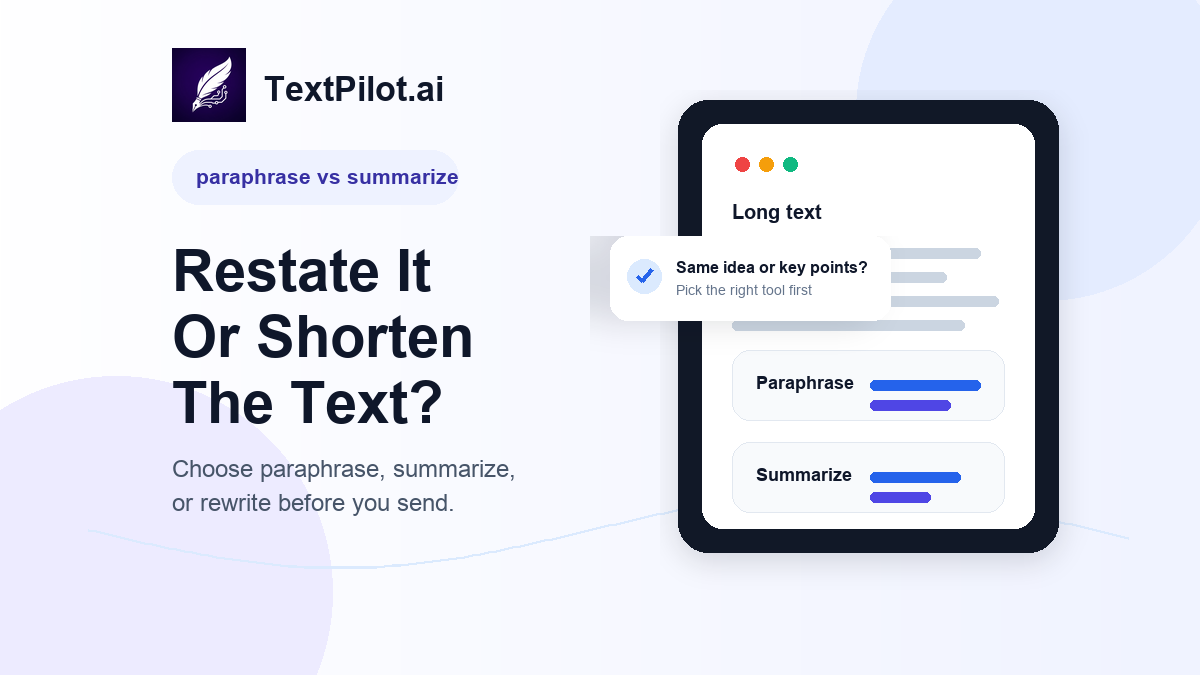
    TextPilot.ai paraphrase vs summarize thumbnail showing when to restate text and when to shorten long content.

    Paraphrase vs Summarize: The Simple Difference

    Purdue OWL explains paraphrasing as putting source material in your own words while keeping the meaning. Summarizing is different because it reduces a larger text to its main points.

    That difference matters in everyday writing. If you pick the wrong tool, the output may be technically clean but not useful.

    Use paraphrasing when the meaning should stay complete

    Paraphrasing is best when the full idea still matters.

    Use it for:

    • rewriting a sentence that sounds awkward
    • changing tone without changing the point
    • restating a paragraph in simpler English
    • avoiding repeated wording in product copy
    • making a rough note sound more natural

    Example:

    Original: We are unable to proceed until the requested approval is received from your team.

    >

    Paraphrase: We can move forward once your team sends the approval.

    The paraphrase keeps the same meaning. It just sounds clearer.

    The TextPilot.ai paraphrasing tool works well when the idea is already right but the wording needs a new shape.

    Use summarizing when the full text is too long

    Summarizing is best when you do not need every detail.

    Good summarizer use cases include:

    • pulling key points from a long article
    • shortening a report before review
    • turning a long email thread into action items
    • reducing notes into a cleaner outline
    • scanning research snippets before writing

    Example:

    Original: A four-page project update includes completed tasks, risks, open questions, timeline changes, and next steps.

    >

    Summary: The project is on track, but the launch date depends on final legal review and two open design decisions.

    The summary drops detail. That is the point.

    The TextPilot.ai summarizer is the better fit when you need the main ideas from long pasted text.

    Use rewriting when the structure is the problem

    Rewriting sits between paraphrasing and summarizing.

    Choose the TextPilot.ai rewrite tool when the sentence or paragraph needs better flow, not just different words.

    Before:

    I wanted to ask if you can review this because we need to send it soon and there are still some things that may be unclear.

    After:

    Could you review this today? I want to make sure the unclear sections are fixed before we send it.

    The rewrite changes the structure. It also makes the ask easier to answer.

    For more examples, read AI Paragraph Rewriter and AI Sentence Rewriter.

    Quick decision table

    Need Use Why
    Same meaning, clearer wording Paraphrase The full idea still matters
    Main points only Summarize The original text is too long
    Better flow or stronger ask Rewrite The structure needs work
    Small mistakes fixed Grammar check The wording is mostly ready

    After paraphrasing or summarizing, run a final pass with the TextPilot.ai grammar checker. Small grammar issues can appear after any rewrite.

    Do not hide source material

    Paraphrasing is not the same as copying with a few word changes. If the idea comes from a source, keep the meaning accurate and credit the source when needed.

    This matters for blog posts, reports, school work, and client research. A paraphrase should be your own wording and structure, not a lightly edited copy.

    If you are worried about overlap, read AI Plagiarism Checker before publishing or submitting important text.

    A practical workflow

    Use this workflow when you are not sure which tool to choose:

    1. Ask: do I need the full idea?

    2. If yes, paraphrase.

    3. If no, summarize.

    4. If the text is confusing, rewrite.

    5. If the text is ready but has mistakes, grammar-check it.

    6. Read the result and compare it with the original.

    TextPilot.ai can help with each step inside a browser writing workflow. Try it at TextPilot.ai when you need to restate, shorten, rewrite, or clean up text before using it.

    FAQ

    Is paraphrasing shorter than summarizing?

    Not always. A paraphrase can be about the same length as the original because it keeps the full meaning. A summary is usually shorter.

    Should I paraphrase or summarize an article?

    Summarize the article if you only need the main points. Paraphrase a specific sentence or paragraph if you need to restate it in clearer words.

    Can AI paraphrasing cause plagiarism issues?

    Yes, if the result stays too close to the source or removes needed credit. Review the output and cite sources when the idea is not yours.

  • AI Plagiarism Checker: How to Check Copy Risk

    AI Plagiarism Checker: How to Check Copy Risk

    You finish a product page, client email, or class handout and paste it into a checker. A few lines come back with matches. Some are common phrases. Some are close to a source you read earlier. Now you need to know what is actually risky.

    An AI plagiarism checker helps with that review. It should not be treated as a judge. It is a signal that points you toward overlap, missing credit, and wording that may need a rewrite before you publish, submit, or send.

    TextPilot.ai AI plagiarism checker thumbnail showing a copy-risk review before publishing.

    AI Plagiarism Checker Workflow for Safer Drafts

    Start with the right expectation. A checker can show matching text and similar phrasing. It cannot fully understand your intent, your assignment rules, your client brief, or whether a phrase needs attribution in your exact context.

    Turnitin explains that similarity does not automatically prove plagiarism. Purdue OWL also frames plagiarism as using another person’s words, ideas, or work without proper credit. That means your job is not just to chase a score. Your job is to review the matches and fix the draft where needed.

    1. Check the whole draft, not one sentence

    Run the full piece through the TextPilot.ai plagiarism checker. A single sentence can look harmless by itself. Across a full draft, repeated borrowed phrasing may show a pattern.

    Use this for:

    • blog posts before publishing
    • website copy before handing it to a client
    • reports before sending them to a manager
    • student work that needs responsible source use
    • LinkedIn posts based on research or competitor pages

    Do not use the result as the final answer. Use it as a review list.

    2. Separate common phrases from real copy risk

    Some matches are not a problem. Phrases like “contact us today,” “terms and conditions,” or “improve your writing” appear all over the web. They are often too generic to worry about.

    Other matches deserve attention:

    • a full sentence that matches a source
    • a paragraph with the same structure as another page
    • a definition copied without credit
    • a product description too close to a competitor
    • a paraphrase that only swaps a few words

    When the match carries the same structure, examples, and order as a source, treat it as copy risk.

    3. Rewrite risky sections with a new structure

    The safest rewrite does more than replace words. It changes the structure of the idea.

    Risky draft:

    AI writing tools help users create emails, blog posts, social captions, and business documents faster with less effort.

    Safer rewrite:

    Use AI for the rough pass, then edit the message for the person reading it. In work writing, that usually means clearer emails, shorter posts, and cleaner documents.

    The second version changes the angle. It does not just swap “create” for “write.”

    Use the TextPilot.ai rewrite tool when the section needs a new shape. Use the TextPilot.ai paraphrasing tool when the wording needs a fresh version but the point should stay the same.

    For more rewrite examples, see AI Paragraph Rewriter: How to Make Drafts Clear and How to Use an AI Sentence Rewriter: Easy Tips.

    4. Add credit when the idea is not yours

    Some overlap should not be rewritten away. If you use a specific definition, framework, quote, research point, or source argument, credit the source.

    For a blog post, that may mean linking to the original source. In a school or formal document, follow the required citation style. Inside an internal work doc, name the source in a note or comment thread so the reader can trace the idea.

    Do not hide source material with light paraphrasing. That creates more risk, not less.

    5. Use AI detection as a separate review

    Plagiarism and AI detection are different checks.

    A plagiarism checker looks for overlap with existing text. An AI detector looks for signals that a draft may read like AI-generated writing. Both tools are signals, not proof.

    Use the AI detector after the copy-risk check if the draft sounds too polished, flat, or generic. The goal is not to trick a detector. The goal is to make the draft useful and honest.

    You can also read AI Detector for Writing: How to Review Drafts for a careful review workflow.

    6. Clean the final version before sending

    After you fix risky overlap, run a final pass for grammar and clarity. A clean originality review does not mean the writing is ready.

    Check for:

    • missing context
    • awkward transitions
    • overlong sentences
    • copied source order
    • claims that need a link
    • language that sounds unlike you

    The TextPilot.ai grammar checker can help with small errors after the larger copy-risk edits are done.

    A simple copy-risk checklist

    Before you publish, submit, or send, use this quick check:

    • Check the full draft.
    • Review each meaningful match.
    • Rewrite risky sections with a new structure.
    • Credit specific ideas, claims, or quotes.
    • Avoid adding facts during the rewrite.
    • Run a final grammar and clarity pass.

    This is the practical place for TextPilot.ai. You can check overlap, rewrite risky sections, review AI-writing signals, and clean the final draft in one browser writing workflow. Try it at TextPilot.ai when you need to review important copy before it leaves your hands.

    FAQ

    Is an AI plagiarism checker always correct?

    No. It can show matches and possible overlap, but it cannot make the final judgment for every writing context. Review the source, the wording, and the rules you are writing under.

    Should I rewrite every highlighted match?

    No. Common phrases may not need changes. Focus on full sentences, close paraphrases, copied structure, and source-specific ideas without credit.

    Can I use AI to fix plagiarism risk?

    You can use AI to rewrite unclear or risky wording, but you still need to keep meaning accurate and credit sources when the idea comes from someone else.

  • AI Paragraph Rewriter: How to Make Drafts Clear

    AI Paragraph Rewriter: How to Make Drafts Clear

    You paste a client update into Gmail and it turns into a wall of text. The facts are useful, but the paragraph jumps from deadline to blocker to next step without giving the reader a clear path.

    An AI paragraph rewriter helps when the idea is right but the paragraph needs better structure. It can split one dense block into clearer sentences, tighten weak wording, and keep the original meaning intact.

    TextPilot.ai AI paragraph rewriter thumbnail showing a long paragraph rewritten into clearer browser text.

    AI Paragraph Rewriter Workflow for Clearer Drafts

    Purdue OWL explains that effective paragraphs need unity, coherence, a topic sentence, and enough development. That applies to work writing too. A paragraph should make one main point and guide the reader through it.

    Use this workflow when you are editing emails, LinkedIn posts, reports, product copy, support replies, or long web form text.

    Step 1: Find the main point

    Before rewriting, ask one question: what should the reader understand after this paragraph?

    Rough paragraph:

    We reviewed the first version of the landing page and there are still some issues with the pricing section because the layout is confusing and the FAQ needs a few more questions, but the hero section is approved and we can probably move forward once the pricing changes are done.

    Main point:

    The landing page is mostly approved, but pricing and FAQ changes are still blocking the next step.

    Once you know the main point, the rewrite gets easier.

    Step 2: Break one long paragraph into smaller parts

    Long paragraphs are hard to scan, especially in email and browser writing. The U.S. Office of Personnel Management plain-language guidance recommends short sentences and paragraphs because they help readers understand the message.

    Better version:

    The hero section is approved.

    >

    The pricing section still needs work because the layout is confusing. The FAQ also needs a few more questions before the page is ready.

    >

    Once those two items are done, we can move to the next review.

    The same facts are still there. The reader can now see the status, blocker, and next step.

    Step 3: Rewrite for the reader, not the tool

    Do not ask an AI tool to “make this better” without context. Tell it where the paragraph will be used.

    Use a prompt like this:

    Rewrite this paragraph for a professional email. Keep the meaning the same. Make it clearer, split long sentences, and do not add new facts: [paste paragraph]

    Use the TextPilot.ai rewrite tool when the paragraph already has the right information but needs better flow.

    Step 4: Keep facts from changing

    A paragraph rewrite can accidentally add certainty. Watch for new dates, promises, names, or conclusions.

    Original:

    We may be able to send the final version after legal reviews the refund copy.

    Risky rewrite:

    We will send the final version after legal approves the refund copy today.

    Safer rewrite:

    We can send the final version after legal reviews the refund copy.

    That small difference matters. The safer version does not invent approval or timing.

    Step 5: Use paraphrasing only when wording needs a new shape

    Rewriting and paraphrasing overlap, but they are not the same job.

    Use an AI paragraph rewriter when the paragraph needs clearer structure, tone, or length.

    Use the TextPilot.ai paraphrasing tool when the idea is fine but the wording needs a fresh version. This is useful for avoiding repeated phrasing in product copy, emails, or posts.

    Step 6: Run a final grammar check

    After the paragraph is clear, use the TextPilot.ai grammar checker. This catches small issues after the bigger rewrite is done.

    Check for:

    • missing words
    • unclear pronouns
    • repeated phrases
    • punctuation problems
    • sentences that still feel too long

    If the paragraph sounds too polished or generic, use the TextPilot.ai humanizer to adjust rhythm and tone. Then read it once yourself.

    Before and after examples

    Client update

    Before:

    We are still waiting for the final image assets and because of that the page cannot be finished today, but the copy edits are complete and the mobile layout is ready.

    After:

    The copy edits are complete, and the mobile layout is ready. We still need the final image assets before we can finish the page.

    LinkedIn post

    Before:

    I wanted to share some thoughts about writing emails because many people make them too long and then the reader has to work too hard to understand what they need.

    After:

    Long emails make readers work too hard. A better email gives context, makes one clear ask, and ends with the next step.

    Support reply

    Before:

    We understand that this issue is frustrating and our team is currently reviewing the details and will get back to you with more information once we have completed our investigation.

    After:

    I understand this is frustrating. Our team is reviewing the details now, and I will send an update once we finish checking the issue.

    Where TextPilot.ai fits

    TextPilot.ai is useful when you write inside the browser. Use the Chrome extension to rewrite paragraphs in Gmail, LinkedIn, Google Docs, resumes, posts, reports, and web text fields.

    For related help, read How to Use an AI Sentence Rewriter and Grammar Checker vs AI Rewriter.

    Try the TextPilot.ai rewrite tool when a paragraph has the right facts but needs clearer structure before you send or publish.

    FAQ

    What is an AI paragraph rewriter?

    An AI paragraph rewriter changes the structure, tone, length, or flow of a paragraph while keeping the original meaning.

    Can an AI paragraph rewriter change my meaning?

    Yes. Always compare the rewrite with the original, especially when the paragraph includes dates, prices, promises, or responsibilities.

    When should I use a paragraph rewriter instead of a grammar checker?

    Use a paragraph rewriter when the structure or tone is weak. Use a grammar checker after the paragraph already says what you mean.

  • AI Follow-Up Email Writer: How to Write Better Emails

    AI Follow-Up Email Writer: How to Write Better Emails

    You sent the proposal on Tuesday. It is Friday afternoon, and the thread is still quiet. You need to follow up, but the first draft sounds impatient: “Just checking in because I have not heard back.”

    TextPilot.ai ai follow up email writer thumbnail

    An AI follow-up email writer helps when you know the point but need better wording. It can turn a rough reminder into a short email with context, a clear ask, and a respectful next step.

    AI Follow-Up Email Writer Workflow for Work Messages

    A useful follow-up email does three things. It reminds the reader what the message is about. Then it explains what you need. Finally, it makes the next step easy.

    Purdue OWL’s email etiquette guidance notes that once you have already exchanged emails on a subject, it can be acceptable to leave greetings out of follow-up emails. That is a helpful reminder: follow-ups should be clear, not padded.

    Use this simple workflow with the TextPilot.ai email writer.

    Step 1: Write the plain version first

    Start with the facts, even if the wording is rough.

    Need answer on proposal. Sent Tuesday. Want to know if they have questions. Need decision by next Wednesday.

    Now ask TextPilot.ai to turn that into a professional follow-up:

    Hi Maya, I wanted to follow up on the proposal I sent Tuesday. Do you have any questions I can help answer? If possible, could you let me know your decision by next Wednesday?

    The message is not fancy. That is the point. It gives context, offers help, and names the timing.

    Step 2: Choose the right follow-up type

    Different follow-ups need different tone.

    Client proposal

    I wanted to follow up on the proposal I sent Tuesday. Do you have any questions, or would it help if I sent a shorter summary of the options?

    Sales call

    Thanks again for the call yesterday. I wanted to send the next step we discussed: a quick review of your current email workflow and where response time slows down.

    Job interview

    Thank you again for speaking with me on Monday. I enjoyed learning more about the role and wanted to follow up on next steps when you have an update.

    Harvard Business School Online recommends patience and professionalism when following up after interviews. That same rule works for most business follow-ups. Do not make the reader feel chased.

    Step 3: Remove weak follow-up phrases

    Some common phrases make emails feel vague or apologetic.

    Avoid:

    • Just checking in
    • Sorry to bother you
    • Touching base
    • Any update?
    • Following up again

    Better:

    I wanted to follow up on the timeline for the homepage draft. Do you still want the revised version by Friday?

    This version gives the reader something specific to answer.

    Step 4: Rewrite the tone before sending

    The first draft may sound too stiff, too soft, or too direct. Use the TextPilot.ai rewrite tool before you send.

    Too pushy:

    I still need your feedback today so we can move forward.

    More professional:

    Could you send your feedback today if possible? That will help us keep the project moving.

    Too vague:

    Let me know your thoughts.

    Clearer:

    Could you let me know whether you prefer option A or option B?

    Step 5: Use Smart Reply for short follow-ups

    Not every follow-up needs a full email. If someone sends a quick note in Gmail, the TextPilot.ai Smart Reply workflow can help you answer without overthinking it.

    Incoming email:

    Can you resend the invoice?

    Smart reply draft:

    Yes, I’ll resend it now. Please let me know if you still do not see it.

    Short replies should stay short. Do not turn a simple answer into a paragraph.

    Step 6: Grammar-check the final version

    Run the final draft through the TextPilot.ai grammar checker. This is especially useful for non-native English speakers and client-facing messages.

    Check for:

    • Missing dates
    • Unclear asks
    • Repeated phrases
    • Tone that sounds too sharp
    • Grammar or punctuation mistakes

    The best follow-up is easy to answer. If the reader has to guess what you want, rewrite it.

    7 follow-up email examples

    1. Polite reminder

    I wanted to follow up on my note from Tuesday. Do you have any questions, or is there anything else you need from me before deciding?

    2. Client update

    Quick follow-up on the design review: we can start revisions once we have your notes on the homepage section.

    3. Sales follow-up

    Thanks for speaking with me today. Based on our conversation, the next useful step is to review the reply workflow your team uses in Gmail.

    4. No-response follow-up

    I wanted to bring this back to the top of your inbox. If now is not the right time, I am happy to reconnect next month.

    5. Internal teammate follow-up

    Can you send the final numbers by 2 PM? I need them before I finish the client update.

    6. Support follow-up

    I wanted to check whether the fix worked on your side. If the issue is still happening, please send a screenshot and I will take another look.

    7. After-interview follow-up

    Thank you again for the conversation yesterday. I enjoyed learning more about the team and wanted to follow up on the next steps when you have an update.

    Where TextPilot.ai fits

    TextPilot.ai is practical when you write follow-ups inside the browser. Use the Chrome extension to draft or rewrite text in Gmail, LinkedIn, Google Docs, and other web text fields.

    For related help, read Best AI Email Writer for Work and How to Use an AI Sentence Rewriter.

    Try the TextPilot.ai AI email writer when you need a follow-up draft, then use rewrite and grammar check before sending.

    FAQ

    What is an AI follow-up email writer?

    An AI follow-up email writer turns rough notes into polite reminder emails, sales follow-ups, client updates, and short reply drafts.

    How do I make a follow-up email sound less pushy?

    Add context, make one clear ask, and avoid guilt-based phrases. Offer help when useful, but do not over-apologize.

    Can TextPilot.ai write follow-up emails in Gmail?

    Yes. TextPilot.ai can help draft, rewrite, and grammar-check follow-up emails for Gmail and other browser writing fields.

  • AI Slack Message Generator: How to Write Better Updates

    AI Slack Message Generator: How to Write Better Updates

    You have three rough notes in your head before standup: the bug is fixed, QA still needs one more build, and the designer needs to approve the empty state. The Slack box is open. Ten people are waiting. You type a sentence, delete it, then send a message that creates two follow-up questions.

    TextPilot.ai ai slack message generator thumbnail

    An AI Slack message generator helps most when you already know the facts but need a cleaner way to say them. It should not make the decision for you. It should turn scattered notes into a message your team can scan and act on.

    AI Slack Message Generator Workflow for Clear Work Updates

    Slack messages fail for simple reasons. They bury the ask. They hide the deadline. They sound too casual for a blocker or too formal for a quick check-in.

    Slack’s own workplace etiquette guidance recommends messages that scan quickly, with formatting for key points and threads for organized follow-up. That is the right standard for AI-assisted writing too.

    Use this workflow before you send an AI-written Slack message.

    Start with the message type

    Pick one: status update, decision request, blocker note, follow-up DM, meeting recap, delay update, or handoff note.

    Each type needs a different shape. A blocker note needs impact and owner. A follow-up DM needs context and a direct ask. A meeting recap needs decisions and next steps.

    Give the tool rough notes, not a vague prompt

    Bad prompt:

    Write a professional Slack message about the project.

    Better prompt:

    Write a short Slack update for #launch. Facts: checkout bug is fixed, QA needs build 42, designer needs to approve empty state. Ask: can Priya approve by 3 PM? Tone: direct and friendly.

    The second prompt gives the AI enough structure to produce a useful draft. It also keeps the facts visible so you can check them before sending.

    Use a four-part Slack structure

    For most work messages, use this order:

    1. Context
    2. Update
    3. Ask
    4. Deadline or next step

    Example:

    Quick launch update: the checkout bug is fixed and ready for QA in build 42. The only open item is the empty-state design approval. Priya, can you review it by 3 PM so QA can finish the pass today?

    That message works because it names the context, current state, owner, and deadline.

    Keep DMs shorter than channel posts

    DMs should usually be shorter because the context is shared between two people.

    Rough note: “Need Alex to send customer list. We need it for migration test. Today if possible.”

    Better DM:

    Alex, can you send the customer list for the migration test today? We need it before we run the final import check.

    That is enough. Just context and a clear ask.

    For a channel post, add more context:

    Migration test update: we are ready for the final import check, but we still need the customer list. Alex, can you send it today? Once we have it, I’ll run the test and post results in this thread.

    Format messages so people can scan them

    Slack supports message formatting with bold text, lists, links, and code-style formatting. Use formatting when the message has multiple points.

    For example:

    Launch status

    – Checkout bug: fixed

    – QA: waiting for build 42

    – Design: empty state needs approval

    – Ask: Priya to review by 3 PM

    This is better than a dense paragraph when the message includes several moving parts. It also helps non-native English speakers because the structure carries part of the meaning.

    Rewrite tone before grammar

    Grammar is the last step. Tone comes first.

    Blunt draft:

    You did not send the file. I need it now.

    Better:

    Can you send the file when you have a minute? I need it before the 2 PM review.

    Direct update:

    I still need the file before the 2 PM review. Can you send it by 1:30?

    Both versions can be correct. The right one depends on the relationship and urgency. Use the TextPilot.ai rewrite tool when the facts are right but the tone feels off.

    Do not let AI add fake certainty

    AI drafts often sound confident. That can be risky in Slack because team messages move fast.

    Check for sentences like:

    • “This is fully resolved.”
    • “We will ship today.”
    • “No further action is needed.”

    Only keep those lines if they are true. If you are not sure, write:

    The fix is ready for QA. I’ll confirm once the test pass is done.

    That sentence is more useful than a confident claim you may need to correct later.

    Where TextPilot.ai fits

    TextPilot.ai is our product, so the recommendation here is not neutral. Use it when you want a focused writing workflow across Slack, email, docs, and browser text boxes.

    A practical flow is simple: paste rough notes into TextPilot.ai, ask for a Slack message type, rewrite for tone, run a quick grammar check, then read the message once before sending.

    Use the TextPilot.ai AI writing assistant when you need help turning notes into a clear first draft. Use the grammar checker at the end. If the message sounds too polished, use the humanizer and then remove any wording you would not actually say.

    Copy-ready Slack prompt

    Turn these notes into a short Slack message. Include context, the ask, owner, deadline, and next step. Keep my meaning. Do not add new facts. Notes: [paste notes].

    Final check before sending

    Before you send an AI-assisted Slack message, check the ask, owner, deadline, and facts. Also ask whether the message belongs in a thread, DM, or channel post.

    An AI Slack message generator should make your work messages easier to act on. It should not make them longer, softer, or more generic. Keep the facts tight. Make the next step obvious. Send the message only after it still sounds like you.

    Try the TextPilot.ai writing assistant when you need to turn rough work notes into clear Slack replies, channel updates, and docs without overthinking every sentence.

    FAQ

    What is an AI Slack message generator?

    An AI Slack message generator turns rough notes into Slack-ready DMs, updates, replies, and recaps. The best results come when you provide the message type, facts, tone, and next step.

    How do I make AI-written Slack messages sound natural?

    Use short prompts with real context. Remove filler. Keep only facts you can verify. If the draft sounds stiff, rewrite it for the person or channel.

    Related TextPilot.ai Guides